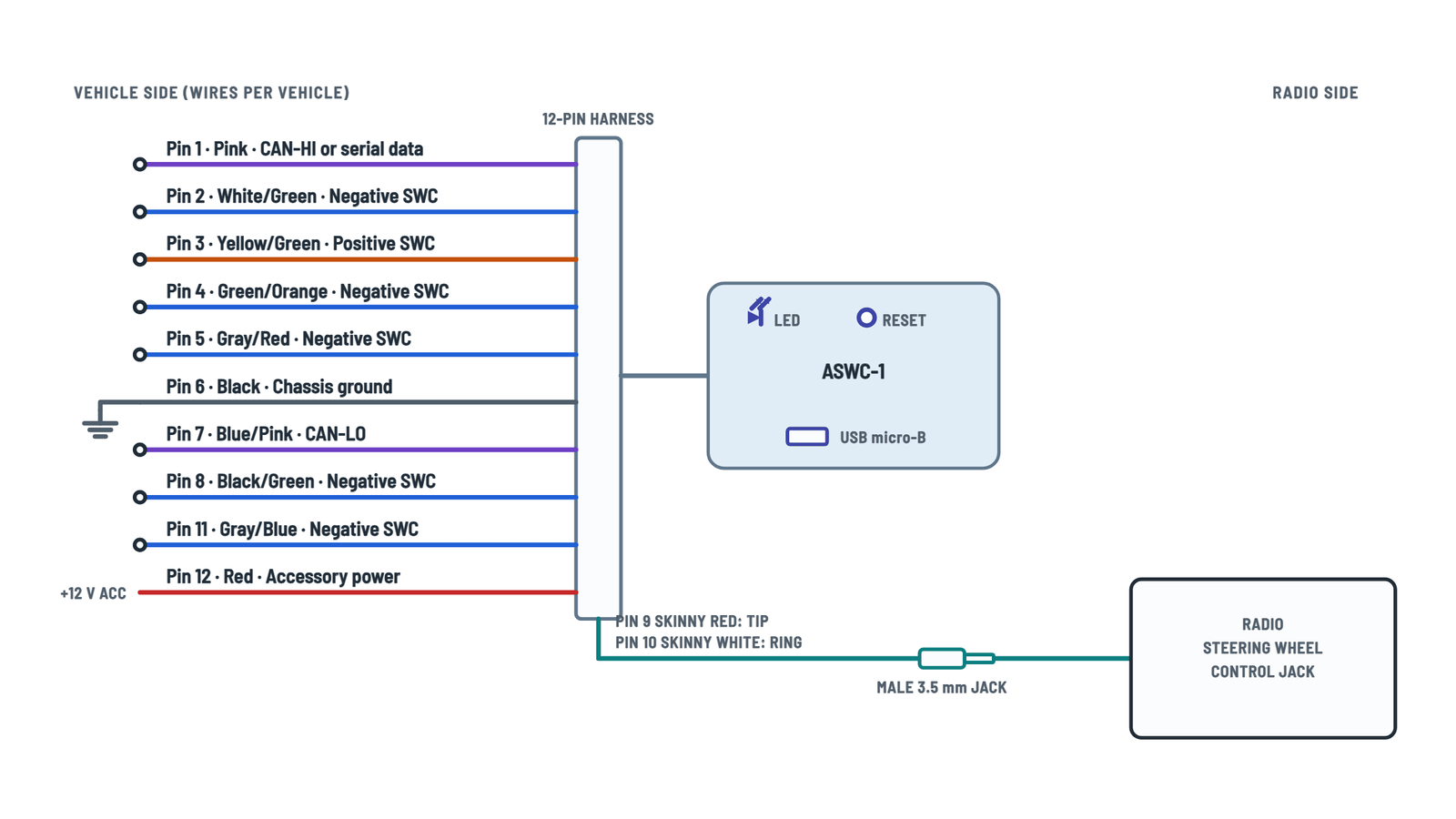
Axxess ASWC-1 Universal Control Interface Wiring Diagram
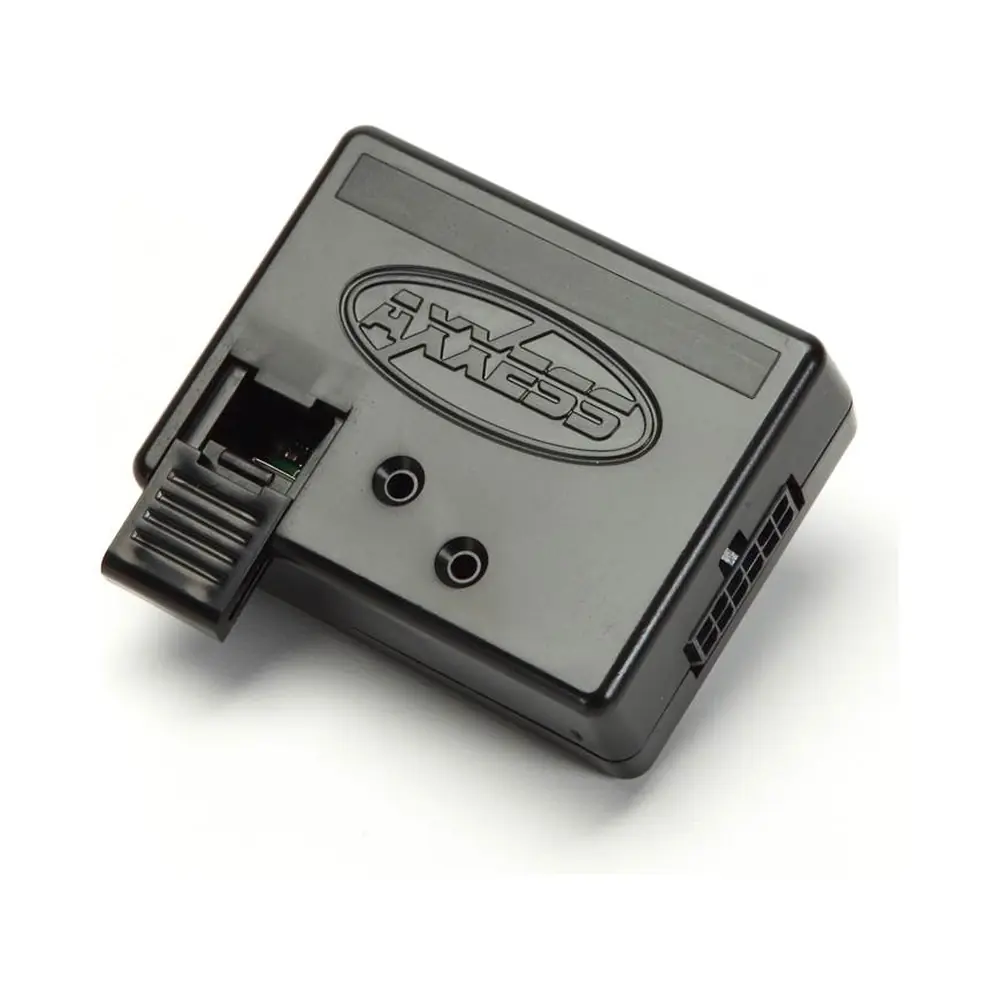
ASWC-1 connections
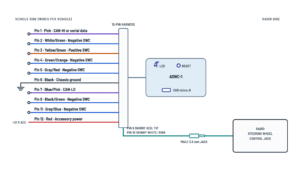
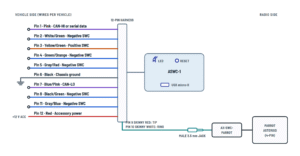
12-pin harness to the vehicle and connection to the radio by brand.
Terminals and components · 8
- Ground
- Accessory 12 V
- CAN
- SWC (−)
- SWC (+)
- 3.5 mm jack
- Female adapter
Connection
Soldering is best; do not use tap-style connectors (they can change the resistance and the interface will fail to program).
Connection
Soldering is best; do not use tap-style connectors (they can change the resistance and the interface will fail to program).
Steering wheel wires
Which ASWC-1 wire goes to which vehicle wire depends on the model: look it up in the Axxess vehicle-specific instructions. Tape any you do not use.
Steering wheel wires
Which ASWC-1 wire goes to which vehicle wire depends on the model: look it up in the Axxess vehicle-specific instructions. Tape any you do not use.
Connection
Soldering is best; do not use tap-style connectors (they can change the resistance and the interface will fail to program).
Steering wheel wires
Which ASWC-1 wire goes to which vehicle wire depends on the model: look it up in the Axxess vehicle-specific instructions. Tape any you do not use.
Connection
Soldering is best; do not use tap-style connectors (they can change the resistance and the interface will fail to program).
Reset
The button is recessed: press it with the tip of a paper clip.
Update
Through the micro-B USB port (slide the cover open).
Correct jack
Use the steering wheel control jack, not the mic or AUX jack: Pioneer «W/R», Sony blue «REMOTE», Alpine «REM».
One-wire radios
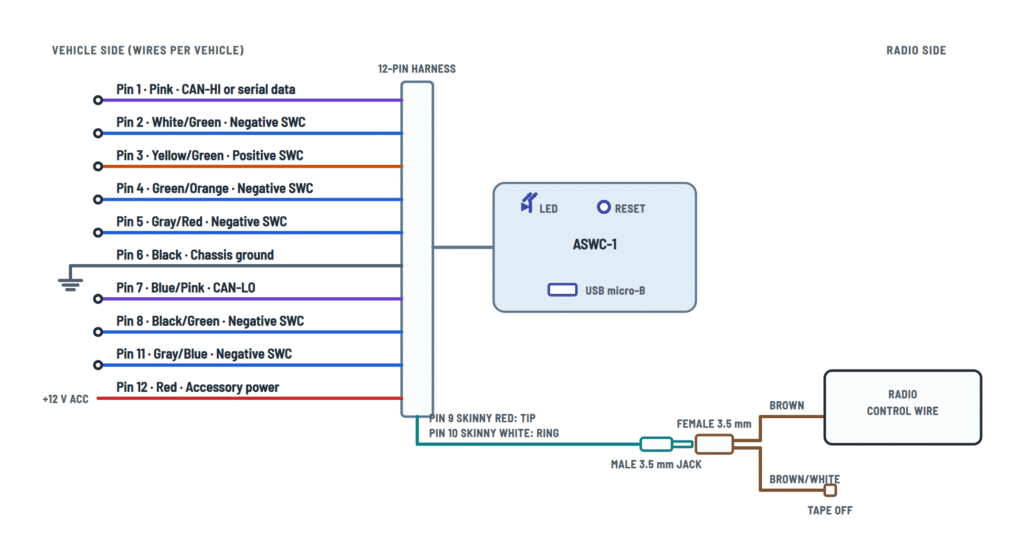
Brand Radio wire to brown Kenwood / JVC Blue/yellow Metra OE Key 1 (gray) XITE SWC-2 Kenwood
Do not mix up the blue/yellow with the blue/white. If the Kenwood is detected as a JVC, change the radio type manually.
Two-wire radios
- Universal «2 or 3 wire»: Key-A / SWC-1 to brown and Key-B / SWC-2 to brown/white; the third (ground) wire is not used.
- Eclipse: ASWC-1 brown to the radio's brown/black and brown/white to brown.
After programming
With wire-input radios, also assign the buttons in the radio's menu (not needed on JVC and Kenwood).
Software
The radio must have rev. 2.1.4 or higher and the ASWC-1 the latest software.
Radio type
The ASWC-1 auto-detects the brand; if it fails, the radio type can be changed with the steering wheel volume buttons.
About This Diagram
This diagram is redrawn from page 5 of the Axxess ASWC-1 Universal Control Interface manual, and we offer it completely free and in English. We have also categorized it in the Car Audio & Stereo (Automotive) section on Diagramverse, and it has been rated by 1 user with an average rating of 5.0. If you have any specific questions about the Axxess ASWC-1 Universal Control Interface Wiring Diagram, we suggest checking the Frequently Asked Questions (FAQs) section.
Printable Axxess ASWC-1 Wiring Diagrams




Wiring Instructions
Before you start
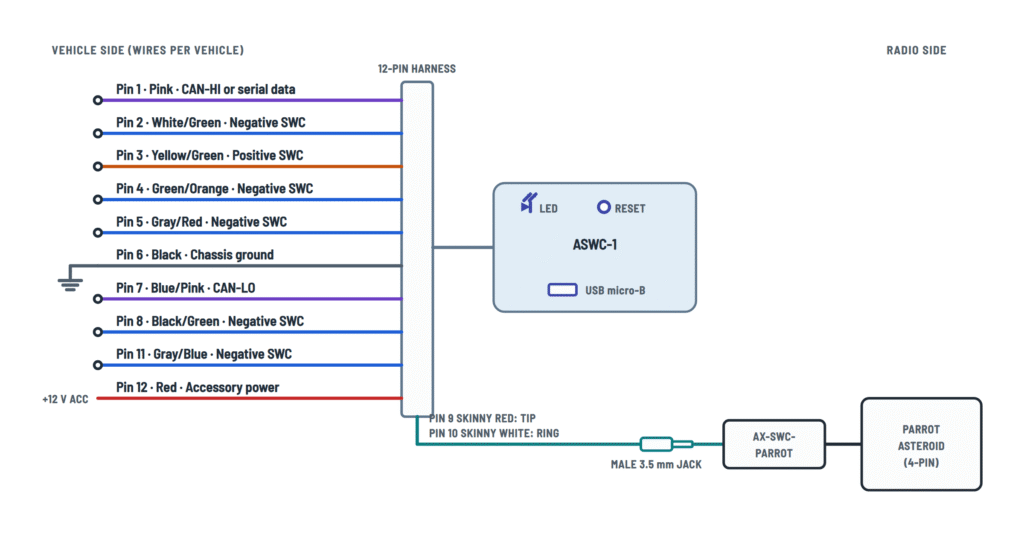
Choose the Axxess ASWC-1 tab that matches how your aftermarket radio accepts steering wheel commands. Use Radio jack if the radio has a 3.5 mm SWC input on the back. Use One wire for radios with a single SWC wire, such as Metra OE (Gray Key 1), Kenwood or select JVC models (Blue/Yellow wire), and XITE (SWC-2 wire). Use Two wires for Eclipse radios. Use Parrot for a Parrot Asteroid Smart or Tablet.
- Tools: cutting tool, crimping tool, tape, soldering iron, multimeter, and a paper clip for the recessed reset button.
- Materials: a ring terminal for the ground (not supplied), solder or crimp caps, and the AX-SWC-PARROT adapter if you have a Parrot radio (sold separately).
- Information: know your vehicle's exact year, make and model, and print the vehicle-specific ASWC-1 instructions from the Axxess website. They tell you which steering wheel wires to use and which auto-detect action your vehicle needs.
- Before removing the radio: make sure the factory steering wheel buttons work and find the Volume Up button. You need it for programming.
- Firmware: update the ASWC-1 to the latest software through its Micro B USB port before you install it.
- Wire gauge: use the supplied 12-pin harness as it is. Don't extend the Black ground wire. If you have to lengthen any other lead, match the gauge of the harness wire and solder the joint.
Disconnect the negative battery terminal before you start. If you leave it connected, turn the key off and let the vehicle sit a few minutes with the key out before you unplug the factory radio. This is an all-12 V job and needs no permit. Still, if you aren't comfortable identifying wires in the vehicle harness with a multimeter, have an MECP-certified installer do it.
Step-by-step wiring
- Remove the factory radio and find the vehicle harness that carries the steering wheel control wires listed in your vehicle instructions.
- Crimp a ring terminal onto the Black: chassis ground (Pin 6) and bolt it to bare chassis metal, by itself. The radio's ground point works, but a dedicated chassis ground is far more reliable, especially in vehicles that send the buttons over a data bus.
- With the key off, connect the Red: accessory power (Pin 12) to the vehicle's 12 V accessory wire.
- Use a multimeter to confirm each steering wheel wire your vehicle instructions call for. Then connect only those wires: one or more of the Negative SWC inputs (Pins 2, 4, 5, 8, 11), the Yellow/green: positive SWC (Pin 3), or the Pink and blue/pink: CAN-HI and CAN-LO (Pins 1 and 7) on data-bus vehicles.
- Solder every vehicle connection, or use crimp caps or a military splice. Don't use tap-style or butt connectors. They add resistance and cause intermittent faults, and the interface may then fail to program.
- Insulate each unused harness wire on its own with tape.
- Connect to the radio according to your tab:
- Radio jack: plug the Male 3.5 mm jack into the radio's SWC input. Don't use the AUX or Bluetooth microphone jack.
- One wire: plug the Female 3.5 mm connector into the male jack. Join Brown to the radio's SWC wire, then insulate and tape off Brown/white.
- Two wires (Eclipse): plug in the female connector. Join ASWC-1 Brown to the Eclipse Brown/Black, and ASWC-1 Brown/white to the Eclipse Brown.
- Parrot: plug the male jack into the AX-SWC-PARROT adapter, then plug its 4-pin harness into the radio's SWC connector. The Parrot radio must be on rev. 2.1.4 or higher.
- Leave a stress loop in the 3.5 mm cable so the jack can't pull out when you push the radio into the dash.
- Place the ASWC-1 interface where you can see its LED during programming. Plug in all accessories before you reconnect the battery or turn on the ignition.
Testing and start-up
With the key on, measure about 12 V DC between the Red wire and chassis ground. Then run Auto Detect:
- Turn the ignition on. The LED should flash red rapidly while it looks for the vehicle and the radio. If it doesn't, hold the reset button for 3 seconds.
- Do the action your vehicle instructions specify: nothing, hold Volume Up, or tap Volume Up repeatedly.
- The LED goes dark for about 2 seconds. Don't press any buttons during this pause.
- Seven green flashes follow, one for each input in this order: White/Green, Yellow/Green, Green/Orange, Gray/Red, Black/Green, Gray/Blue, Pink. A long flash means the wire is connected; a short flash means it is not. Check that the long flashes match the wires you connected.
- After another pause, the LED flashes red up to 15 times. The count identifies the radio brand it detected. For example, 2 is Kenwood, 6 is Pioneer and Jensen, and 7 is Alpine.
- A solid LED means detection succeeded. Test every button before you reassemble the dash.
If your vehicle has factory Bluetooth buttons, hold Hang up or Pick up once the LED is solid. The LED turns off after 3 seconds when those buttons are accepted.
Safety notes
- The airbag circuits run near the steering column and dash wiring. Only cut or splice wires you have confirmed as steering wheel control wires, and never probe yellow airbag connectors.
- CAN-HI and CAN-LO carry vehicle network data. A bad splice there can upset other modules, so make those joints clean, soldered and insulated.
- Insulate every unused wire separately so it can't short against the chassis or another lead.
- Don't connect the Red wire to constant battery power. Use the accessory circuit, with the key off while you make the connection.
Troubleshooting
| Symptom | Probable Cause | What to Check |
|---|---|---|
| LED doesn't light or flash at all when I turn the key on | No 12 V on the Red wire or a poor ground on the Black wire | With the key on, measure between Red (Pin 12) and chassis ground. You should see about 12 V DC. Check the ground ring terminal for a tight crimp and bare metal, then hold reset for 3 seconds. |
| LED keeps flashing and never goes solid at the end of auto detect | Interface shares the radio or factory ground, which isn't enough for the processor | Run the Black wire, unextended, to its own chassis ground with a properly crimped ring terminal. Then hold reset for 3 seconds and repeat auto detect. |
| All seven green flashes are short | The steering wheel wires aren't connected, or the wrong vehicle wires were used | Recheck the wires against the vehicle-specific instructions and confirm them with a multimeter. Each wire you connected should show a long flash in its position. |
| It programmed once but now fails or works only sometimes | Tap-style or butt connectors on the vehicle wires are adding resistance | Replace them with soldered joints, crimp caps or military splices, then reset and run auto detect again. |
| Seven red flashes, but my radio isn't an Alpine | Interface sees no radio, usually because the jack is in the AUX or Bluetooth mic port or not fully seated | Move the Male 3.5 mm jack to the radio's steering wheel control input, push it fully home, and reprogram. |
| LED goes solid but the Kenwood radio ignores the buttons | Radio was detected as JVC (5 red flashes) instead of Kenwood | Use Changing Radio Type to force radio type 2. Also make sure the radio's Remote Sensor setting is on, or switch it off and back on. |
| Eclipse radio doesn't respond or buttons act wrong | Brown and Brown/white are swapped at the radio | ASWC-1 Brown goes to the Eclipse Brown/Black, and Brown/white goes to the Eclipse Brown. If it still fails, try the other Eclipse radio type (1 or 12). |
| Single-wire radio shows a solid LED but nothing happens | Brown/white was used instead of Brown, or the radio's own SWC learning wasn't done | Connect Brown to the radio's SWC wire and tape off Brown/white. On radios other than JVC and Kenwood, also run the radio's own steering wheel learning procedure. |
| Pioneer or Sony buttons work but are out of order or come and go | 3.5 mm jack not seated, slipping out, or dirty contacts | Clean the contacts, reseat the jack firmly, and add a stress loop. If a heatsink blocks the jack, trim the plastic slightly so it seats fully. |
| Alpine radio doesn't respond after programming | Radio wasn't learned correctly with the jack connected, or its remote sensor is set to the front | Unplug the jack, reprogram the ASWC-1, then plug the jack back in. Set the remote sensor to rear, or toggle it front and back to rear. |
| Clarion radio doesn't work after a solid LED | Wrong Clarion radio type selected | Use Changing Radio Type to try the other Clarion type: 3 for Type 1 or 10 for Type 2. |
| Parrot Asteroid doesn't react to any button | AX-SWC-PARROT adapter missing, or outdated radio or interface firmware | Fit the AX-SWC-PARROT, update the Parrot to rev. 2.1.4 or higher, update the ASWC-1, and confirm 14 red flashes. |