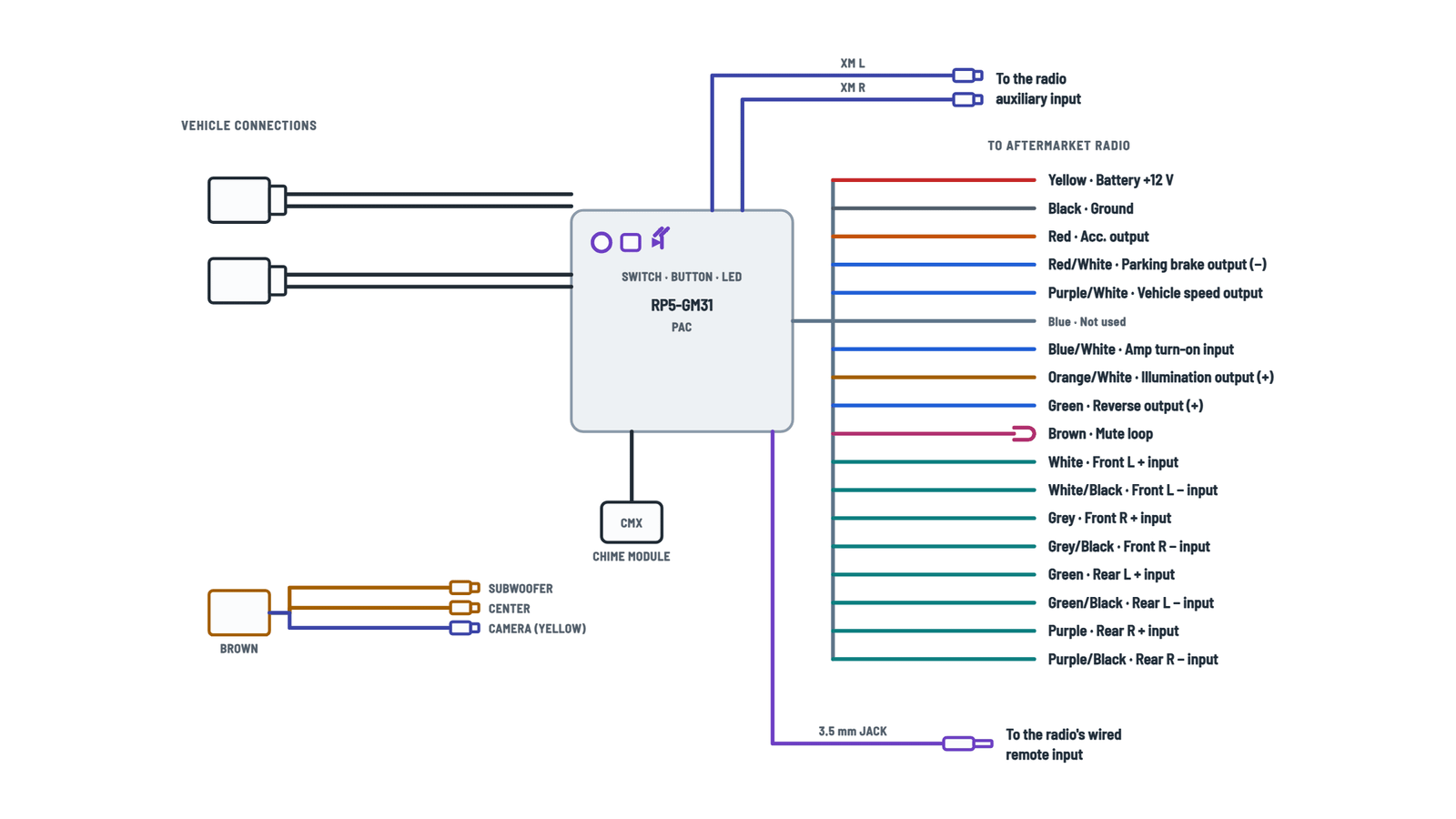
RP5 GM31 Universal Control Interface Wiring Diagram
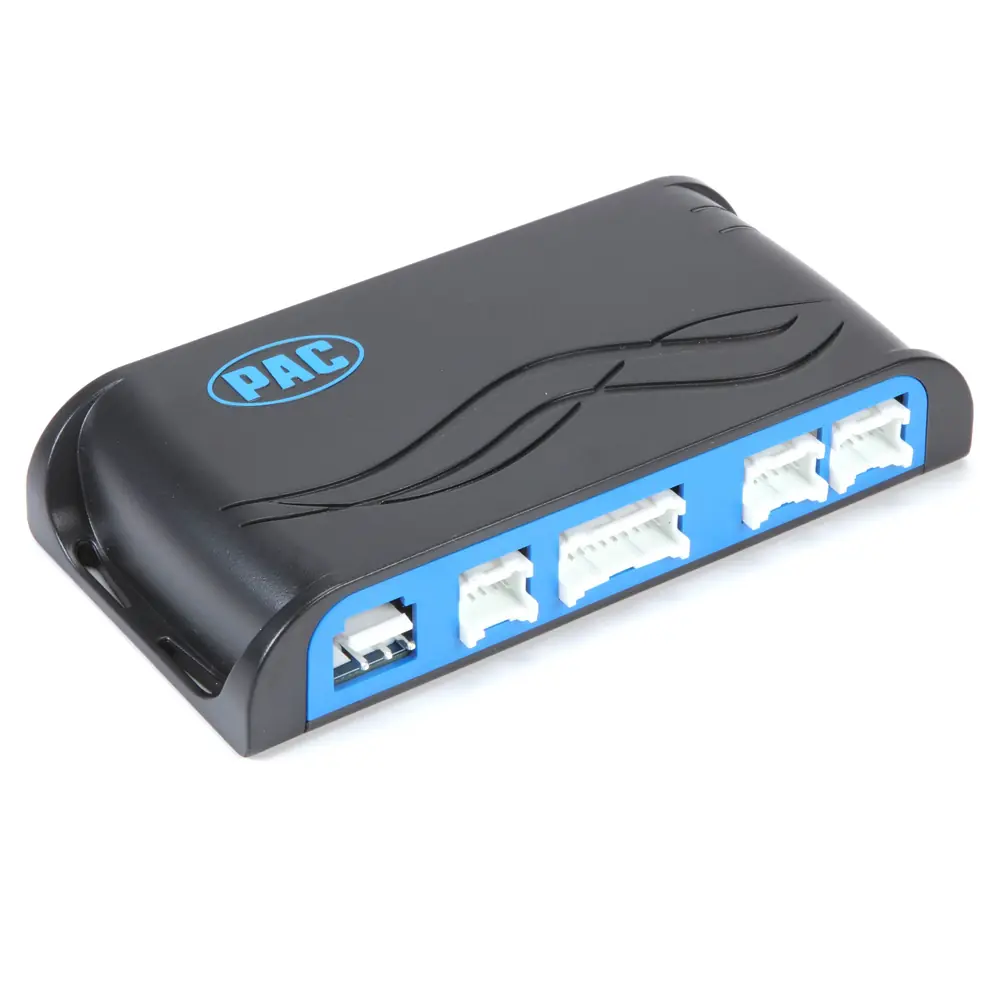
Interface connections
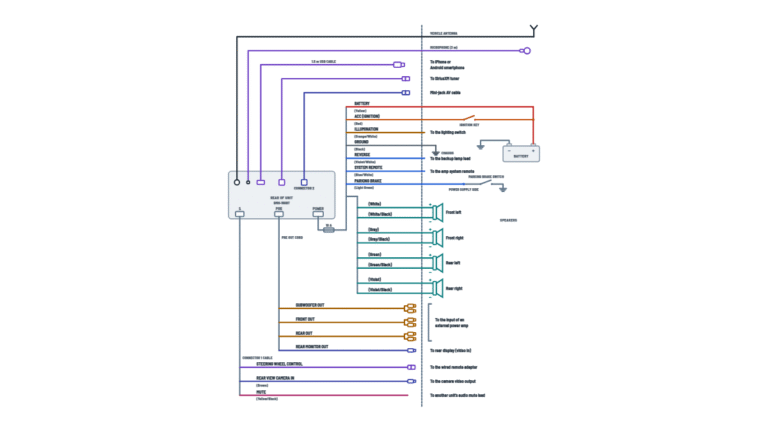
Vehicle connectors, wires to the aftermarket radio, XM and BOSE audio, chime module and steering wheel control.
Terminals and components · 20
- +12 V
- Accessory
- Ground
- Signals
- Speakers
- Illumination and BOSE
- XM and camera
- Steering and switch
- Mute
Before plugging in
Set the interface's radio select switch before plugging it into the vehicle.
Switch position
Position Radio 1 Alpine 2 JVC 3 Kenwood 4 Clarion 7 Pioneer and others 8 Sony 9 Fusion Others
«Other» includes Advent, Boyo, Dual, Lightning Audio and Visteon.
Programming
Programming is only needed to reassign button functions or use short/long press.
Radio with a mute input
Cut the loop and connect the inner brown wire (next to the blue/white) to the mute input.
Audio
These are inputs: they take the radio's speaker outputs to the factory system. If the vehicle has a factory amplifier, use the amplified audio location.
Audio
These are inputs: they take the radio's speaker outputs to the factory system. If the vehicle has a factory amplifier, use the amplified audio location.
Audio
These are inputs: they take the radio's speaker outputs to the factory system. If the vehicle has a factory amplifier, use the amplified audio location.
Audio
These are inputs: they take the radio's speaker outputs to the factory system. If the vehicle has a factory amplifier, use the amplified audio location.
Without those outputs
If the radio has no center or sub output, do not use this cable; channel summing is not recommended.
Mounting
Mount it clear of obstructions, as low as possible under the dash, pointing down to the floor.
3.5 mm jack
For Alpine, JVC, Clarion, Pioneer, Sony, Fusion, Boyo, Dual, Lightning Audio, Visteon and Advent.
Blue/yellow wire
For Kenwood and newer JVC.
About This Diagram
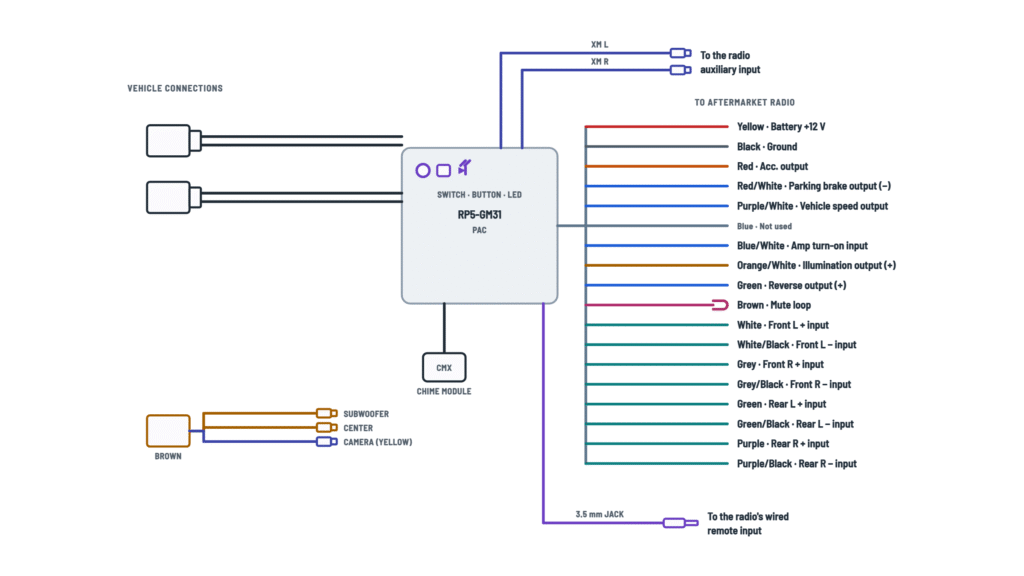
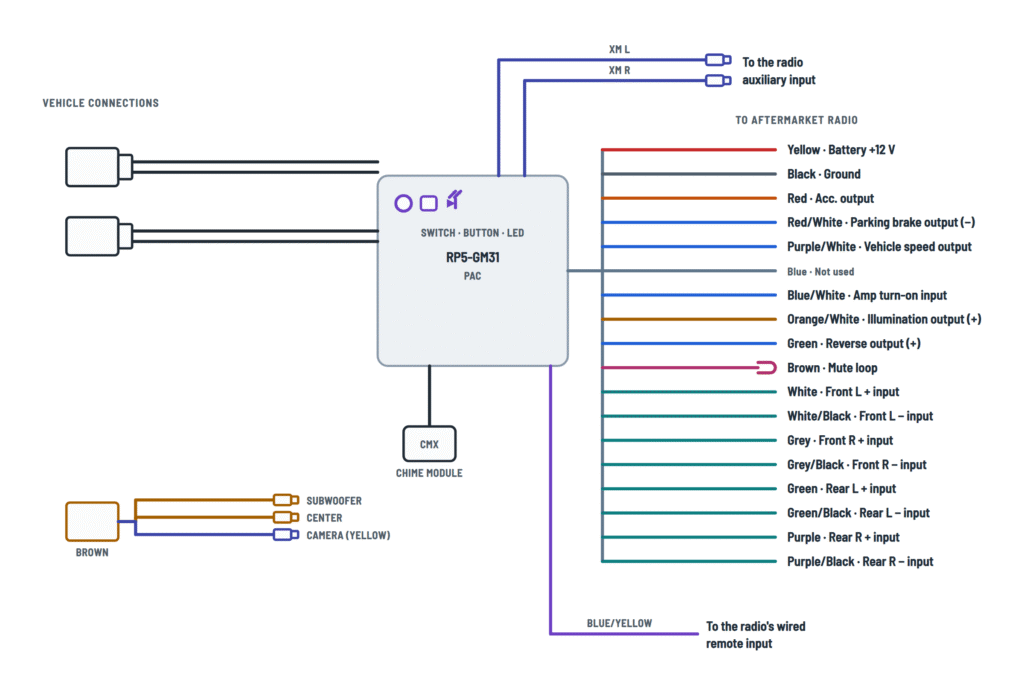
This diagram is redrawn from page 1 of the RP5 GM31 Universal Control Interface manual, and we offer it completely free and in English. We have also categorized it in the Car Audio & Stereo (Automotive) section on Diagramverse, and it has been rated by 1 user with an average rating of 5.0. If you have any specific questions about the RP5 GM31 Universal Control Interface Wiring Diagram, we suggest checking the Frequently Asked Questions (FAQs) section.
Printable RP5 GM31 Wiring Diagrams


Wiring Instructions
Before you start
The RP5 GM31 lets you replace the factory radio in select General Motors vehicles that use 29-bit LAN radios. It keeps OnStar, steering wheel controls, warning chimes, rear seat controls, factory XM and the BOSE amplifier. Everything runs on the vehicle's 12 V system, so you do not need an electrical permit. If you are not comfortable taking apart a dash or working near vehicle wiring, a professional car audio installer can do the job.
- Tools: trim panel tools, wire stripper, crimp tool with butt connectors (or a soldering iron with heat shrink), electrical tape and a digital multimeter.
- Materials: the harness supplied with your new radio and any dash kit the vehicle needs.
- Wire gauge: no gauge is specified. Join each interface lead directly to the matching radio lead. If you have to extend a power or ground lead, use wire at least as heavy as the original.
- Radio requirement: steering wheel controls only work if the new radio has a wired remote input. Check before you buy.
- Choose your variant: in the steering wheel control view, pick 3.5 mm jack for Alpine, JVC, Clarion, Pioneer, Sony, Fusion, Boyo, Dual, Lightning Audio, Visteon or Advent. Pick Blue/yellow wire for Kenwood and newer JVC radios.
Disconnect the negative battery cable before you remove the factory radio, and leave it off until all wiring is finished.
Step-by-step wiring
- Set the radio select switch on the side of the interface before it is ever plugged into the vehicle. Use position 1 for Alpine, 2 for JVC, 3 for Kenwood, 4 for Clarion, 7 for Pioneer and the other brands (Advent, Boyo, Dual, Lightning Audio, Visteon), 8 for Sony and 9 for Fusion.
- Do the wiring on a bench. Join Yellow: battery +12 V to the radio's yellow wire, Black: ground to the radio's black wire, and Red: accessory output to the radio's red ACC wire.
- Connect the four speaker inputs, FL, FR, RL and RR, to the radio's matching outputs. Always join plus to plus and the black-striped minus to minus.
- Find out whether the vehicle has a factory amplifier. If it does, use the factory amplifier audio location. If not, use the non-amplified audio location.
- Connect the signal wires your radio uses: Orange/white to the dimmer input, Green to the reverse input, Red/white to the parking brake input and Purple/white to the speed input on navigation radios. Run Blue/white from the radio's remote turn-on output. The plain blue wire is not used. Insulate it, along with any other lead you leave unconnected.
- Decide what to do with the Brown loop. Uncut, it turns the accessory output off during an OnStar or Bluetooth call. If your radio has a mute input, cut the loop and connect the inner brown wire, the one next to blue/white, to that input. Insulate the other end.
- With a BOSE system, connect the SUB · CENTER RCAs only to the radio's dedicated subwoofer and center outputs. Don't sum channels to make up for a missing output. Leave the cable unused instead.
- If the vehicle has a factory camera, plug the yellow RCA on the brown connector into the radio's camera input.
- To keep factory XM, plug the XM L · R RCAs into the radio's auxiliary input.
- Connect the SWC lead for your variant: either the 3.5 mm jack or the blue/yellow wire.
- Plug the vehicle connectors into the factory plugs. Add the CMX chime module only if the vehicle stops chiming once the radio is removed. Mount it clear of obstructions, low on the dash, facing the floor.
- Tie the harness away from sharp edges and moving parts, then reconnect the battery.
Testing and start-up
- Turn the ignition on. The interface LED should light, and the Red wire should read about 12 V to ground. Yellow should read 12 V even with the key off.
- Check balance and fade. On premium amplified systems, fade does not work, and that is normal.
- Check that the factory subwoofer plays, if the vehicle has one.
- Press each steering wheel button. The LED should flash every time and the radio should respond.
- Press the OnStar button on the mirror. The rear speakers should mute and OnStar audio should play through the front speakers.
- Check that factory XM plays through the auxiliary input.
- Switch off and remove the key. Retained accessory power should keep the radio on for 10 minutes or until the driver's door opens.
- Set chime volume with the 4-position switch on the CMX: 1 is loudest and 4 is softest.
Safety notes
- The Yellow lead is live whenever the battery is connected. Never strip it or splice it with the battery attached.
- Don't use a test light on data bus or other module wiring behind the dash. Use only a high-impedance multimeter.
- Insulate every unused wire separately so bare ends can't touch each other or metal.
- Never ground speaker minus leads to the chassis. This can damage the radio or the factory amplifier.
- If the radio has a built-in fuse, keep it as supplied. Check the rating label on your unit and never fit a larger fuse.
Troubleshooting
| Symptom | Probable Cause | What to Check |
|---|---|---|
| Steering wheel buttons do nothing, but the LED flashes when I press them | Radio select switch set to the wrong brand, or the SWC lead is in the wrong input | Confirm the switch position for your brand: 1 Alpine, 2 JVC, 3 Kenwood, 4 Clarion, 7 Pioneer/Other, 8 Sony, 9 Fusion. Check that the 3.5 mm jack or blue/yellow wire goes to the radio's wired remote input. Set the switch with the interface unplugged. |
| The interface LED never comes on with the ignition on | Vehicle connectors not fully seated, or no battery power or ground | Reseat the vehicle connectors until they click. Check that the Yellow lead reads about 12 V and that the Black lead has continuity to chassis ground. |
| Radio won't turn on, but it does with the key off for a short time | Red accessory output not connected to the radio's red wire, or a loose splice | With the ignition on, measure Red to ground. It should read about 12 V. Redo the splice to the radio's red ACC wire. |
| Radio shuts off every time a phone or OnStar call starts | Brown mute loop is still uncut, so it switches off the accessory output during calls | This is how the uncut loop works. If your radio has a mute input, cut the loop, connect the inner brown wire to that input and insulate the other end. |
| No sound, or weak sound with no bass | Wrong audio location for the factory amplifier, or the amp turn-on lead is not connected | Check whether the vehicle has a factory amplifier and use the matching audio location. Check that Blue/white is connected to the radio's remote turn-on output and reads about 12 V with the radio on. |
| Sound is thin and hollow, or the stereo image is wrong | Speaker polarity reversed, or left and right swapped | Check each pair: white, grey, green and purple to plus, black-striped wires to minus. Check that FL, FR, RL and RR go to the matching radio outputs. |
| Dash display won't dim at night | Orange/white illumination output not connected to the radio's dimmer input | With the headlights on, measure Orange/white to ground. It should be positive. Then check the splice to the dimmer input. |
| Camera picture doesn't appear in reverse | Green reverse output or the camera RCA not connected | In reverse, Green should read positive to ground. Check that the yellow RCA on the brown connector goes to the radio's camera input. |
| Navigation radio or video says the parking brake is off | Red/white parking brake output not connected, or connected to the wrong input | Connect Red/white to the radio's parking brake input. It is a negative output, so with the brake set it should show ground. |
| No warning chimes after the install | CMX chime module not plugged in, or its volume set too low | Plug in the CMX and mount it low under the dash facing down. Set its switch to 1, the loudest setting. |
| Factory XM is silent | XM RCAs not connected to the radio's auxiliary input, or the radio is not set to AUX | Plug the XM L and R RCAs into the auxiliary input, select AUX on the radio, and check that the XM subscription is active. |